Instagram Accounts
This page is the control center for connecting Instagram accounts, checking their status, changing login settings, and maintaining session health.
Main page: Instagram Accounts
For a step-by-step connection and reconnect guide without an Instagram password, see Passwordless Instagram Login.
What this page does
- Account overview. See every connected Instagram account with its status, platform, proxy mode, and profile statistics.
- Add accounts. Use the standard form or the available assisted-login popup tools.
- Account maintenance. Reconnect, refresh cookies, switch platforms, manage passwords and proxies, or remove an account.
- Advanced login. Use enabled helpers such as a 2FA secret, IMAP mail automation, IAM string, bearer token, web session ID, delayed login, and device selection.
Access and requirements
- Package access. Instagram Accounts must be enabled in your package.
- Account limit. Your package determines how many Instagram accounts you can connect.
- Login requirements. The account login workflow requires the installed login and proxy tools. If they are unavailable, the app shows a requirements screen instead of the login form. Proxies
- Zero-account packages. You can open the page, but the Add Account flow is unavailable when the account limit is zero.
Accounts page layout
| Element | What it means |
|---|---|
| Avatar / picture | Shows the current account picture. If no image is available, the card falls back to a numbered placeholder. |
| Username + verified badge | Displays the Instagram username and a verified marker when the account metadata says the profile is verified. |
| Added on | Shows when the account was connected, formatted in your timezone and date format. |
| Quick status line | Shows either Account connected or Click here for re-connect when login is required. |
| Device badges | Shows Web when a web-session is present, and also shows the active emulation platform badge: iOS or Android. |
| Proxy badge | If package proxy allocation is enabled, the card shows whether the account currently uses a Custom Proxy or System Proxy. |
| Accelerator badge | If accelerator support is enabled, the card shows whether the account is marked as an Accelerator or a regular main account. |
| Private switcher | If private switcher is enabled for the user, the card includes a toggle to set the profile to private or public. |
| Statistics area | Shows posts, followers, and followings, plus insights controls for week, month, year, and table view. |
Overview of all connected Instagram accounts. Use this screen to quickly review connection state, platform badges, proxy mode, and available actions before opening a specific account.
Close-up of a single account card. It shows the main status line, platform and proxy badges, visibility controls, and the actions you can run directly from the card without leaving the accounts page.
Buttons on each account card
- Reconnect: Appears when the account requires login again. With Challenge Pro active, the reconnect flow uses the plugin popup tools.
- Refresh self info: Reloads current account information such as avatar and profile stats.
- View timeline: Opens the public Instagram profile in a new browser tab.
- Manage Profile: Appears only in packages that include the Edit Profile module.
Context menu actions
- Login again: Opens the account form for that account and starts a fresh login or re-login flow. Open form
- Switch platform: Available for non-web sessions. Switches the account between iOS and Android emulation.
- Refresh cookies: Refreshes account cookies or session data without deleting the account.
- Login Activity: Opens a popup from the account card with suspicious login attempts and active Instagram sessions. You can confirm whether a login was yours or sign out another session. Instagram Accounts
- Change Password: Starts password change flow for the account.
- Update Password: Updates the stored password for the account when needed.
- Delete: Removes the account, its avatar file, and its Instagram session files from the server.
This menu groups the maintenance actions for an existing account, including reconnect, cookie refresh, platform switching, password tools, and account cleanup.
Expanded account form with relogin tools and optional security fields such as 2FA, password updates, and alternative session methods when those modules are enabled in the package.
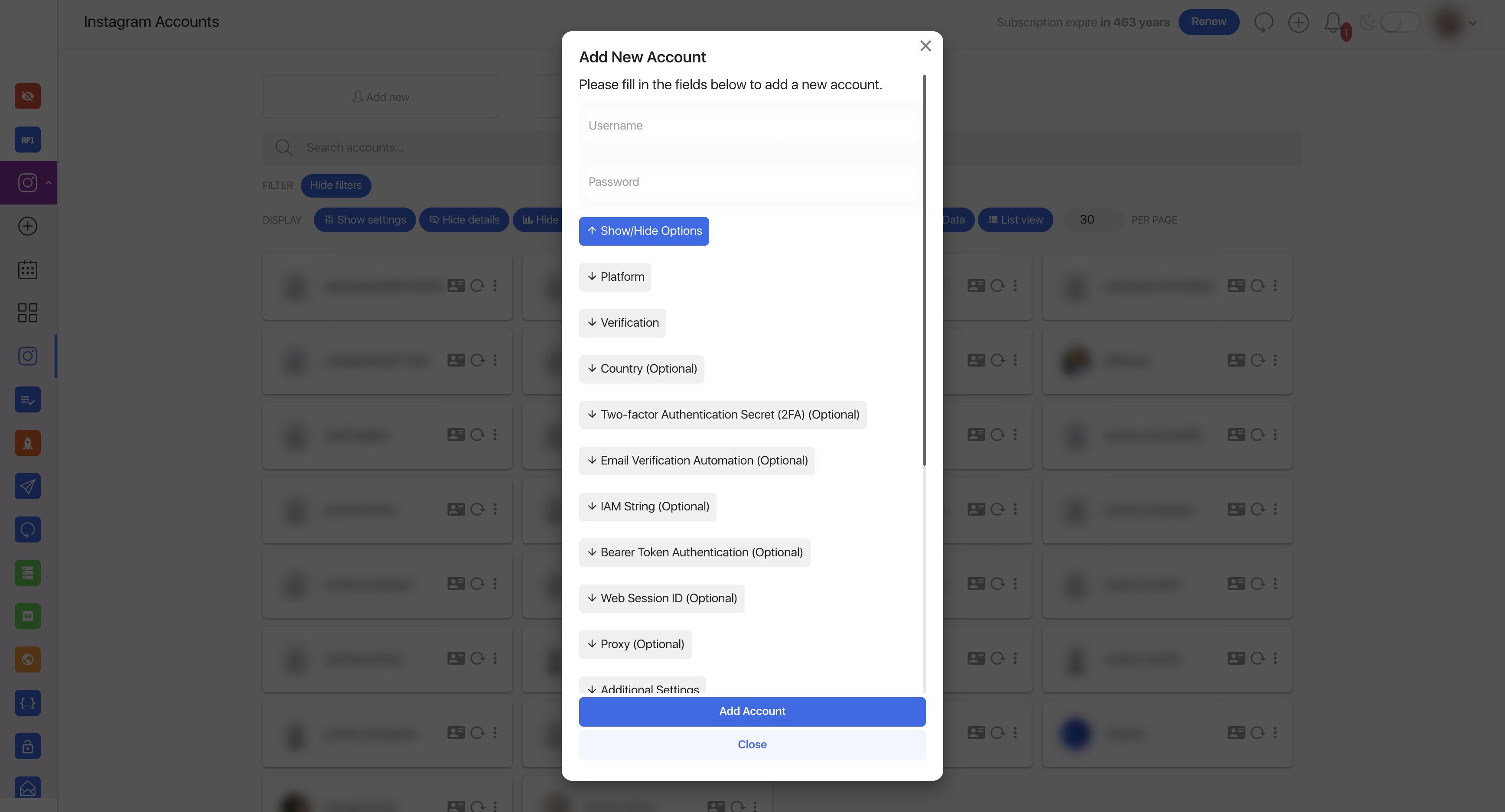
Add account: standard flow
- Open Instagram Accounts.
- Use the top-right Add New Account button or open Add Account.
- Enter username and password.
- Choose platform, verification method, and any optional fields that are enabled in your package.
- Submit the form and complete challenge or 2FA steps if Instagram asks for them.
- After successful login, the account appears on the Accounts page with stats and management actions.
Main login fields
| Field | Purpose |
|---|---|
| Username | Instagram username to connect. |
| Password | Instagram password. In some packages it can also be viewed later on the edit screen. |
| Platform | Selects iOS or Android emulation for the login session. |
| Device | If supported by the installed Instagram API version, you can choose a specific iOS or Android device model for emulation. |
| Use current Instagram session settings | Keeps current session characteristics for a softer re-login. Disable it when you want a full relogin or platform change. |
| Verification | Lets you choose the preferred verification route: E-mail, Mobile phone, Login confirm from trusted device, Backup codes, or WhatsApp. |
Modern login and passwordless reconnect behavior
Instagram can route the same account through password, email-link, one-time-code, two-factor, or trusted-device screens. Nextpost now keeps more context from those screens so reconnect tools can continue the route Instagram actually selected instead of restarting with a generic password attempt.
- When Login with email is available through Challenge Pro or Proxy Manager Pro, the password may be optional for that reconnect session.
- If an account has no saved password and Instagram later logs it out, the account is marked Login required with a specific instruction to reconnect through email or enter the current password.
- Two-factor handling preserves the latest challenge context and supports the extra parameters used by newer Instagram verification screens.
- Keep the same proxy, platform, and device profile during recovery unless you intentionally need to replace a broken session fingerprint.
Core form with username/password, platform and verification options.
Challenge Pro buttons on the Accounts page
When Challenge Pro is active, the page injects extra action buttons above the account list.
- Add new: Opens a Challenge Pro popup entry point for adding one account.
- Import Accounts: Opens the bulk import popup for pasting multiple accounts and processing them in one run.
Package modules can hide either button individually, so some users may see only one of them or neither of them.
Challenge Pro: bulk import
Bulk import accepts one account per line and cleans duplicates, blank lines, and extra spaces automatically.
Supported account formats
| Credential type | Accepted line formats |
|---|---|
| Username and password | username:passwordusername:password:proxyusername:password:proxy:proxy_rotation_link |
| Android session identity | username:password:android_idusername:password:android_id:proxyusername:password:android_id:proxy:proxy_rotation_link |
| Email and IMAP automation | username:password:imap_email:imap_passwordusername:password:imap_email:imap_password:imap_server:imap_portusername:password:imap_email:imap_password:imap_server:imap_port:proxyusername:password:imap_email:imap_password:imap_server:imap_port:proxy:proxy_rotation_link |
| Two-factor authentication | username:password:2fa_secretusername:password:2fa_secret:proxyusername:password:2fa_secret:proxy:proxy_rotation_link |
| IAM session | username:password|user_agent|ids|auth_headersusername:password|user_agent|ids|auth_headers|proxyusername:password:2fa_secret|user_agent|ids|auth_headersusername:password:2fa_secret|user_agent|ids|auth_headers|proxy |
| IAM session with email | username:password|user_agent|ids|auth_headers||email:email_password;backup_email:backup_passwordusername:password|user_agent|ids|auth_headers|proxy|email:email_password:imap_server:imap_port |
The proxy value may include its protocol and credentials. Add the rotation URL after the proxy where the proxy_rotation_link variant is shown. IAM formats are available when IAM login is enabled; the double pipe in the IAM email format means that its optional proxy field is empty.
Advanced import options
- Mark imported accounts as main accounts instead of the default accelerator behavior
- Add without background login, so the account is saved first and authorizes when used later
- Delete session if background login fails
- Start appeals automatically
- Auto-solve phone verification with 5sim.net
- Auto submit selfie for selfie verification flows
- Set temporary 5sim max price, force country, and max verifications per number for this import
- Provide a proxy list for the import; lines can be proxy or proxy:rotation_link
- Filter proxy auto-allocation by selected Proxy Manager Pro labels
Batch mode for importing multiple accounts with optional processing flags.
Challenge Pro details on account cards
Challenge Pro can add extra infobox items and controls directly to account cards.
- Email, phone number, and challenge type can be shown on the card when plugin or user settings enable them
- Edit Data button opens Challenge Pro edit tools for the account
- Log button can appear after reconnect actions when debug logging is enabled for the package or admin
Account limits
The number of Instagram accounts a user can connect comes from the package setting for maximum accounts. Some packages use a fixed number, while -1 means unlimited accounts.